Storage Tips
Understanding what fills up your iPhone storage is the first step toward managing it effectively. This guide explains the main categories and what to look for in each.
Where space actually goes
iPhone storage fills up gradually, often without obvious cause. You download a few apps, take photos over several months, and one day the device tells you storage is almost full. The culprits are usually spread across several categories rather than concentrated in one place.
iOS provides a built-in storage overview in Settings, but it groups content into broad categories that don't always make it obvious what to remove. A cleaning app like Cleaner: Clean Up Storage goes deeper, identifying specific files within each category that are candidates for removal.
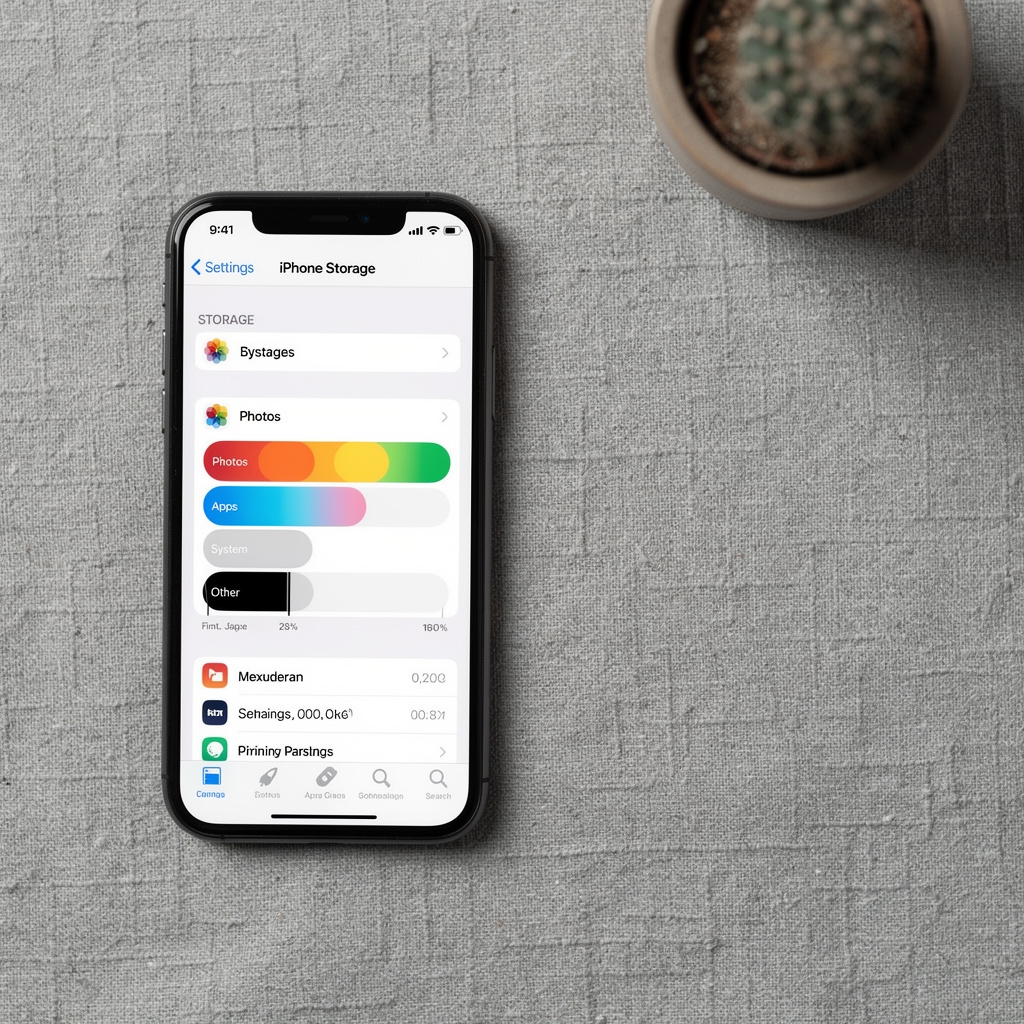
The four areas that consume the most space
Photos and Videos
This is typically the single largest category on most iPhones. Modern camera systems produce large files, and videos in particular accumulate quickly. Duplicates are common here, especially if you take burst photos or receive media through messaging apps.
Cleaner's photo and video scan identifies duplicates and near-duplicates, letting you compare them side by side before deciding which to keep.
App Data and Caches
Apps store temporary data to speed up future loads. Over time, these caches grow. Streaming apps cache content you've watched. Browsers cache pages you've visited. Social apps cache media feeds. None of this is essential data, and clearing it frees space without losing anything you need.
The cache scan in Cleaner separates app cache data from personal files, so you can clear one without touching the other.
Documents and Files
Email attachments, downloaded PDFs, and files saved from messaging apps accumulate in the Files app and in app-specific storage. Many of these are opened once and never accessed again. A document-focused scan surfaces files by size and last-accessed date, making it easier to identify what's worth keeping.
Apps Themselves
The apps you install contribute to storage use both through their own size and through the data they generate. Games are often the largest offenders. Apps you haven't opened in months continue to occupy space. iOS offers an option to offload unused apps automatically, which removes the app but keeps its data.

A systematic way to review storage
Rather than deleting files at random, a category-by-category approach makes it easier to see where the biggest gains are. Start with the category that shows the highest storage use, work through it methodically, then move to the next.
The usage-pattern logic in Cleaner helps with this. Files you've opened recently are treated differently from files that have been untouched for months. This context makes it easier to identify what's genuinely expendable versus what just looks large but is still in regular use.
Things people often ask about storage
Will clearing cache delete my app data?
Cache data and app data are different things. Cache files are temporary and can be regenerated by the app. Your personal data, settings, and saved progress within apps are stored separately and are not affected by a cache clear.
How does duplicate detection work?
The app compares files using content-based matching rather than just file names. Two photos with different names but identical content will be flagged as duplicates. Near-duplicates, such as burst photos, are also identified and grouped for review.
Is it safe to delete files the app recommends?
Recommendations are based on usage patterns and file type. The app flags files that appear to be safe candidates for removal, but the final decision is always yours. Nothing is deleted without your explicit confirmation.
How often should I run a scan?
This depends on how actively you use your device. Heavy users who take lots of photos and download content frequently may benefit from a monthly scan. Light users might find a quarterly scan sufficient. The scheduled scan feature can automate this based on your preference.
Put these tips into practice
Cleaner: Clean Up Storage applies these principles automatically, surfacing what's worth reviewing so you don't have to dig through settings manually.
View on App Store